Powerful Tools I Use for productivity
Essay by Jiru Gutema · published 15 January 2026 · 2 min read min read
Main article: Writings by Jiru Gutema.
In this blog post, I'll share details about a few handy tools I occasionally use for device management and connectivity
3 Powerful Tools I Use for Seamless Android–PC Connectivity
In this blog post, I'll share details about a few handy tools I occasionally use for device management and connectivity. Each section covers what the tool is, the problems it solves, how to use it, and where to get it.
1. Scrcpy

What it is
Scrcpy is a free and open-source application that mirrors and controls Android devices from a computer, supporting connections via USB or TCP/IP with low latency. It allows video and audio streaming and uses the computer's keyboard and mouse for input, without requiring root access on the device.
What problem it solves
It addresses the need for seamless screen mirroring and control of Android devices on a PC, which is useful for gaming on a larger screen, app development, presentations, or multitasking without constantly switching devices.
How to use it
- Enable USB debugging on your Android device (found in Developer Options).
- Connect the device to your computer via USB.
- Download and extract the Scrcpy files.
- Run the executable (e.g.,
scrcpy.exeon Windows) from the command line or directly.- For wireless use, enable ADB over TCP/IP first.
- The device's screen will mirror on your computer, and you can interact using your mouse and keyboard.
Where to get it
Download the latest version from the official GitHub repository:
https://github.com/Genymobile/scrcpy
Project website:
https://scrcpy.org/
Available for Windows, macOS, and Linux.
2. Gnirehtet
What it is
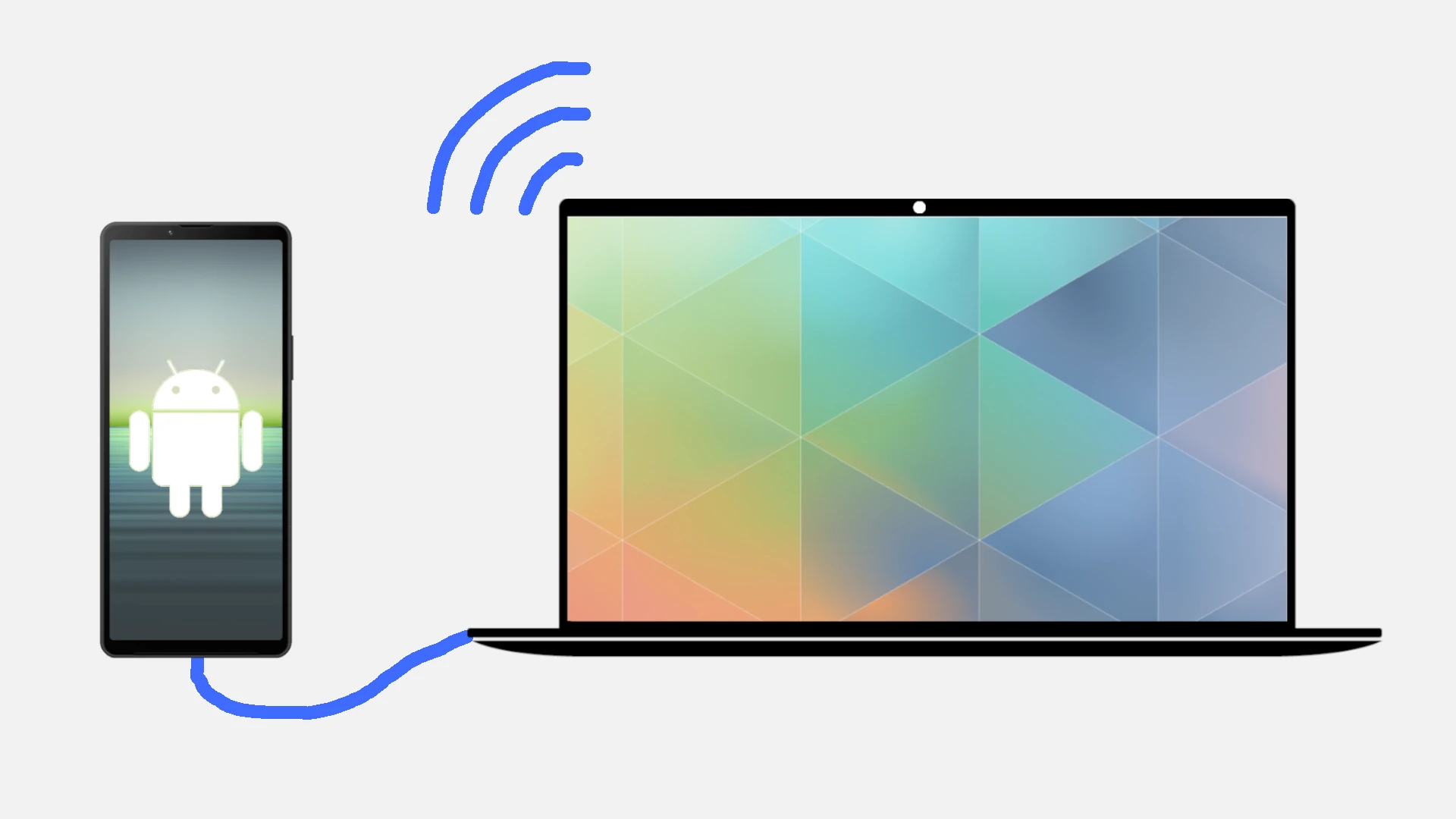
Gnirehtet is a tool that enables reverse tethering for Android devices over ADB, allowing the phone to use the internet connection of the connected computer via USB.
What problem it solves
It solves the issue of providing internet access to an Android device when WiFi or mobile data is unavailable or restricted, by routing traffic through the PC's connection—ideal for testing, bypassing network limits, or using VPNs on the phone via the computer.
How to use it
1.Enable USB debugging on your Android device.
2.Install ADB tools on your computer.
3.Download and extract Gnirehtet (Java or Rust version; Rust is recommended for better performance).
4.Install the APK on your phone using ADB:
adb install gnirehtet.apk
5.Run the tool on your PC:
gnirehtet run
6.To stop the connection:
gnirehtet stop
Where to get it
GitHub repository: https://github.com/Genymobile/gnirehtet
Choose between Java and Rust implementations. No app store installation required.
3. KDE Connect
What it is
KDE Connect is a multi-platform application that allows devices like phones and computers to communicate seamlessly, enabling features such as file sharing, link transfer, notification syncing, and remote control.
What problem it solves
It tackles the fragmentation between devices by providing easy integration for sharing content, controlling media, browsing files remotely, and receiving notifications across platforms—perfect for users with multiple devices who want a unified experience.
How to use it
- Install KDE Connect on your computer (via package managers like
aptor from app stores) and on your Android/iOS device. - Ensure both devices are on the same network.
- Open the app on both devices and pair them by confirming the code.
- Use features like file sharing, clipboard sync, notification mirroring, and media remote control.
Where to get it
Official website: https://kdeconnect.kde.org/
Also available on the Google Play Store and Linux distribution repositories.
Reader reactions
Did you find this helpful?
See also
Tags: ProductivityTools